
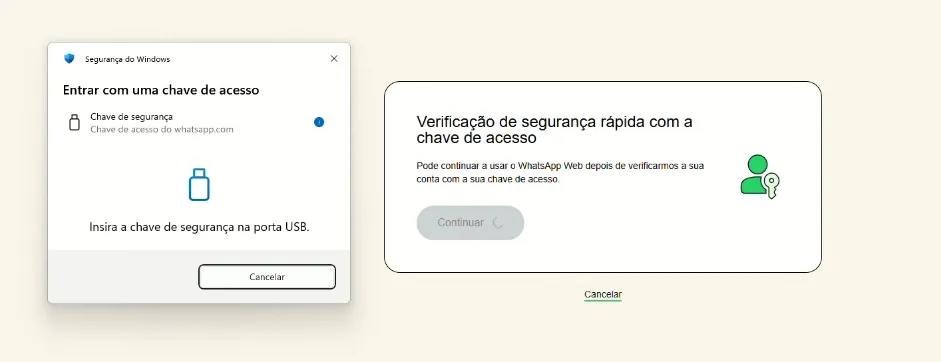
I went to help someone with a WhatsApp Web problem the other day and it turned into a real headache, so I'm writing down what I found along the way. Her WhatsApp was forcing her to create a passkey to log in on the computer. She created the passkey correctly, clicked to continue, and Windows popped up a window asking her to insert a security key into the USB port. That's when the confusion hit: what USB key is this? Do you need to buy some device?
If you landed on the same screen, relax. You don't need to buy anything. The problem is that Windows is offering the wrong option, and your passkey is stored somewhere else.
One heads-up first: WhatsApp has started forcing passkey creation on some accounts, mostly on WhatsApp Business, and there's no option to decline. Anyone already logged in on a device stays logged in. The passkey demand really hits whoever tries to sign in on a new device or does a fresh pairing. So if WhatsApp Web pushed you into creating the passkey and now it's stuck on the USB port, that's what we're going to sort out.
What the USB port screen is actually asking for
The window that shows up is "Windows Security," titled "Sign in with a passkey." It lists "Passkey for whatsapp.com" and right below it the text "Insert your security key into the USB port." Off to the side, WhatsApp shows "Quick security check with your passkey" and a continue button.
The detail that trips everyone up: a passkey and a security key are not the same thing. A security key is that physical device, like a YubiKey, that you plug into USB. A passkey is a digital credential saved on your phone, in Google's password manager, or in Apple's keychain. Windows, not knowing where yours is, guesses the hardware path and asks for the USB port. But your key was never on a USB stick.
Why the WhatsApp passkey ended up in your Google account
When you create the WhatsApp passkey on an Android phone, it doesn't just float around on the device. It gets saved in the Google Password Manager, tied to the Google account that was active at that moment. That's what lets the passkey sync across devices later.
The problem shows up on the PC. The browser you opened for WhatsApp Web is either not signed into any Google account, or signed into a different account from the one that holds the passkey. Without access to the right vault, Windows can't find the credential and falls back to that screen asking for a physical device. The key exists, it's stored, the browser is just looking in the wrong place.
How to solve the WhatsApp Web passkey check
The idea is simple: get the browser to see the same Google account where the passkey was saved. In this case it fixed things right away.
- Remember which Google account was active on the phone when you created the WhatsApp passkey. That's where the credential lives.
- On the computer, open Google Chrome (or Edge) and sign in with that same Google account. If you already use Chrome with another account, add a new profile with the right account instead of mixing them.
- Confirm sync is on for that profile, so the passkeys from Google Password Manager become available.
- Open WhatsApp Web in that browser signed into the correct account.
- When "Quick security check with your passkey" appears, click continue.
- Now, instead of insisting on the USB port, the system should offer the key saved in the Google account. Some cases still ask for confirmation on the phone, so just approve it there.
If the USB port screen comes back, look in the corner of the Windows window for the option to use another device or a phone. Choosing "use a phone" shows a QR code, you scan it with the phone that holds the key, and the check happens through the device, with nothing plugged into the computer.
When pairing gets stuck or the QR code won't show
It isn't always just the Google account. I've seen a case where the person created the passkey correctly, chose "use a phone," and the QR code simply wouldn't load, or it appeared on the phone while the computer stayed blank. After many tries in a row, WhatsApp can lock you out for a while, probably as protection against too many attempts.
If you get to that point, follow this order before pushing further:
- Check for a WhatsApp update in the Play Store or App Store and install it if there is one. An old version is often the cause of the buggy QR code.
- Restart the phone. It clears a good share of pairing failures.
- Check how many devices are connected under "Linked devices" in the app. Even with slots to spare, removing old pairings helps clean up the state.
- Open the pairing again and try scanning the QR code once more, preferably in the browser signed into the right Google account.
- If nothing works, stop and try again later or the next day. A temporary lock from too many attempts clears on its own after a few hours.
Trying nonstop only makes it worse, because each new attempt feeds the lock. Better to give it a break and come back with the app updated and the phone restarted.
How to avoid this mess in the future
Two things help a lot. First, always open WhatsApp Web in the browser signed into the Google account that holds the key. If you keep a Chrome profile with that account, the check becomes almost automatic.
Second, if you'd rather not rely on sync, you can keep the phone nearby and use the "use a phone" option with the QR code every time. It works, but it's more steps. The passkey was invented precisely to skip passwords, so keeping the right account signed in on the browser pays off more.
Worth saying: a passkey is more secure than a password, not less. The scare here is purely about the interface. WhatsApp and Windows could make it clearer that there's a path without hardware, but the credential was always safe in your Google account.
Frequently asked questions
Do I need to buy a USB security key for WhatsApp Web? No. The screen asking for the USB port is just one of the options Windows offers. Your passkey is saved in your Google account, not on a physical device. Open the browser signed into that account and the check works without any USB stick.
Why does WhatsApp Web ask for a passkey check? Once you create a passkey for the account, WhatsApp uses it to confirm it's really you signing into WhatsApp Web. It's a quick security check instead of typing a code or a password.
Where is the WhatsApp passkey stored? If you created it on Android, it's in the Google Password Manager, tied to the Google account active at that moment. On iPhone, it's in the Apple Keychain. That's why the browser needs to be signed into the right account to find the key.
I clicked cancel by accident, now what? No problem. Go back to WhatsApp Web, try to sign in again and the check will show up once more. Just make sure the browser is signed into the Google account that holds the key before you click continue.
Is the "use a phone" QR code option safe? Yes. It uses the passkey on your phone to confirm the login, without exposing any password. It's a good alternative when the PC browser isn't signed into the account that holds the key.
Comments
Join the conversation
Loading comments...